 ExSIONAX Help
 Nederlands
ExSION for Dynamics AX
Easily retrieve data from the Dynamics AX database with ExSIONAX.
A product of:
Exsion365 B.V.
Boerhaavelaan 40
2713 HX Zoetermeer
The Netherlands
T +31 182 441 340

Preface
ExSION for Dynamics AX, short ExSIONAX is an Excel add-in designed specifically for quick and easy presentation of data from the Dynamics AX database. It combines the functionality and presentation power of Excel with a real-time link to the database. So you can refresh short A4 reports on any moment within a few seconds for different companies and different periods.
With ExSIONAX you are no longer dependent on the static form of reporting with Dynamics AX, but you can determine how a report is defined and in which presentation format. By making use of colors and graphs, the presentation value can be increased considerably.
Suppose there are already reports created in Excel in some kind of format. Every period the data will be entered or copied from Dynamics AX. It is now possible to refresh such data in a simple way with ExSIONAX reports. This is done by replacing all the fields that would normally be typed in, to ExSIONAX functions that retrieve the data from the database.
ExSIONAX has three methods to retrieve data from the database:
- By means of a dynamic download
- Using pre-defined functions from the function library
- By user defined functions
These methods are described in the following chapters.
Menu functions
ExSIONAX can be identified by the ExSIONAX tab in the Ribbon. Clicking that tab will show the menu below.

The functionality of menu options from the ExSIONAX menu are described below.
- Connection
- Database structure
- Function library
- Function definition
- Formulas to values
- Show details
- Dynamic download
- Refresh data
- Reporting library
- Task scheduler
- Help
- Info
Connection
First a connection must be created to connect ExSIONAX the Dynamics AX database. The first time ExSIONAX is used, you can only choose for the menu item “New connection”.

After a choosing an item from this submenu, the following screen will appear:
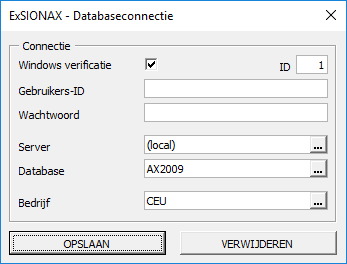
By pressing the “SAVE” button, the connection is saved. The “REMOVE” button deletes a previously saved connection.
| Field | Description |
|---|---|
| ID | The Identification of the database connection is a number between 1 and 999 and is the first argument in all the ExSIONAX functions. To retrieve data over the connection that you create, you should use the number from the ID field. By default the ID will increase by one for each new database connection. |
| Windows authentication | Using windows authentication is preferred to connect to the Dynamics AX database. When this option is enabled there User-ID and Password cannot be entered. |
| User-ID | User-ID with access to the Dynamics AX database. |
| Password | Password associated with the User-ID. |
| Server | MSSQL Server name (or IP address) where the Dynamics AX database is installed.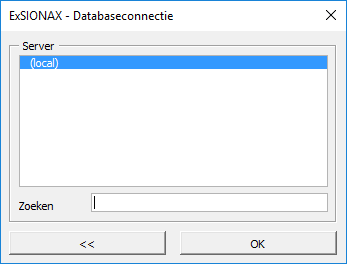 |
| Database | The name of the Dynamics AX database.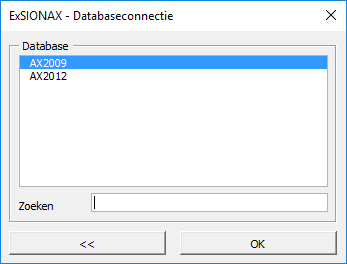 |
| Company | The name of the Company you want to connect to.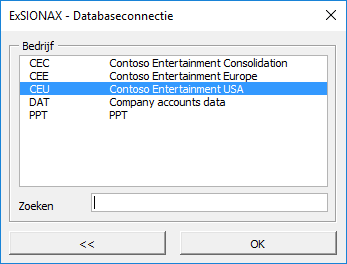 |
Database structure

This function maps the complete database structure, including custom tailored modules. It works as a street guide of your Dynamics AX application. It can give you a deeper insight of the data model of your Dynamics AX environment.
After activating the menu item, the following screen is displayed.
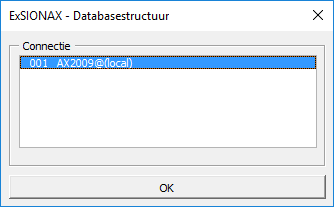
After the OK button is pressed, the database structure is shown for the selected connection.
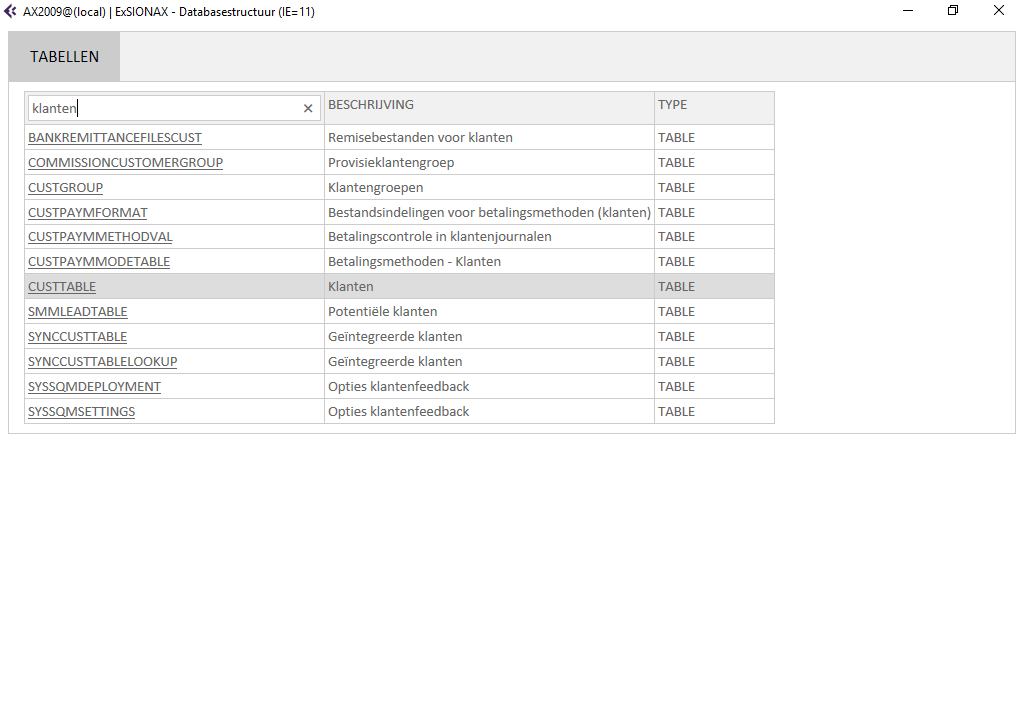
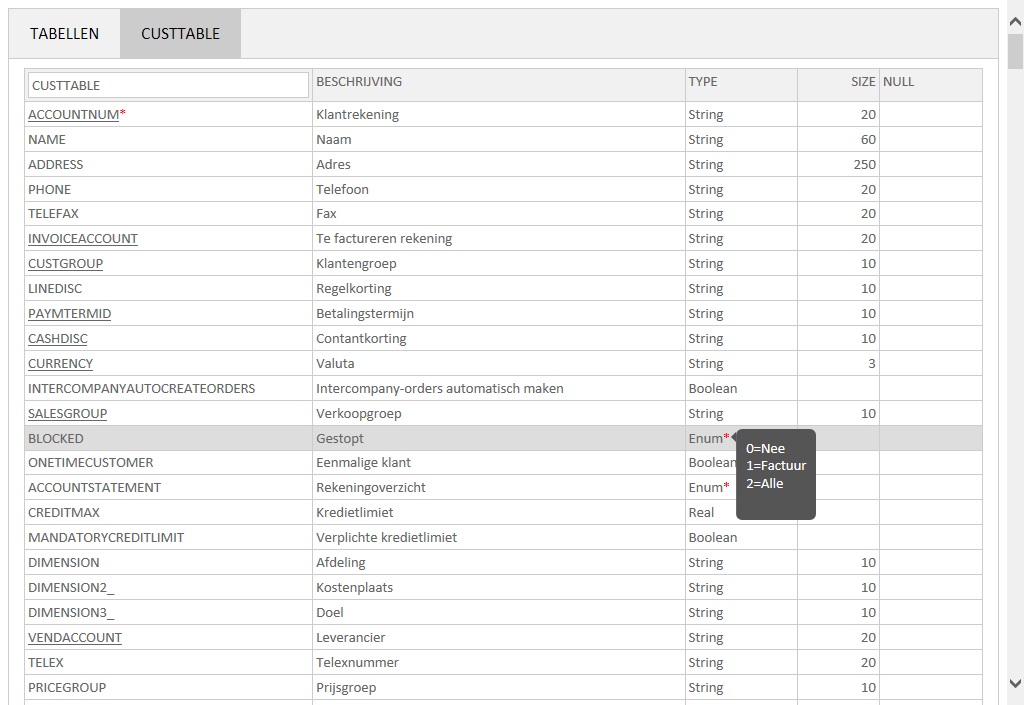
By pressing on the table name, the detail information is shown.
Function library

You can build a library of functions, which will always be present regardless in what Excel file you are working. An advantage of creating functions by this method is that you can add descriptive text to the function and its arguments.
A disadvantage is that the Excel files are not default exchangeable between users. Other users must also define this function(s) in their function library. When installing ExSIONAX you can choose to put the function library in a shared folder, so that all users have access to these functions.
After starting this function you have an overview of functions from the library. If no functions are defined, this list is empty.
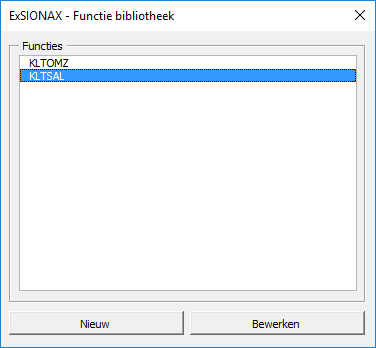
You can choose for “New” to create a new function or “Modify” to modify an existing function.
In this example we'll change the function CUSTBALANCE:
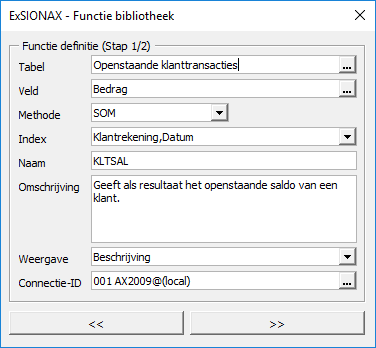
| Field | Description |
|---|---|
| Table | The table from which the function retrieves data.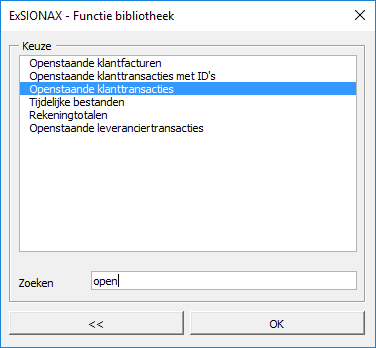 |
| Field | The field to be retrieved using this function.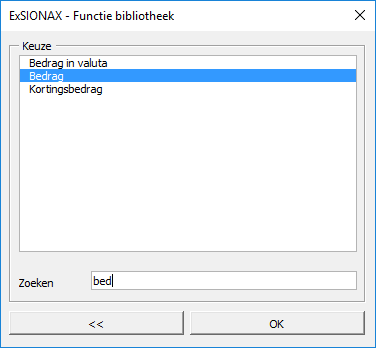 |
| Method | Choice of calculation type on the field (SUM, MIN, MAX, AVG or CNT). |
| Index | The index to be used. The fields in the index will be used as arguments to the function (see step 2). |
| Name | Name of the function which will be defined. |
| Description | A brief description of the function (this description will be displayed in the function wizard of Excel). |
| Display | Choice for displaying the table/field description or name from the database.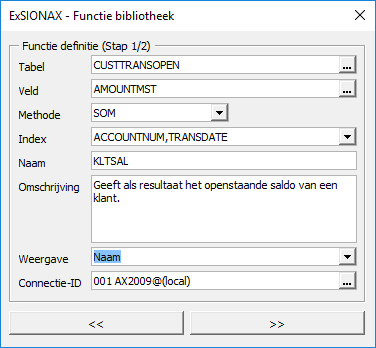 |
| Connection-ID | The ID number of the database connection. |
After the button “>>”, the function arguments are displayed (for the selected index):
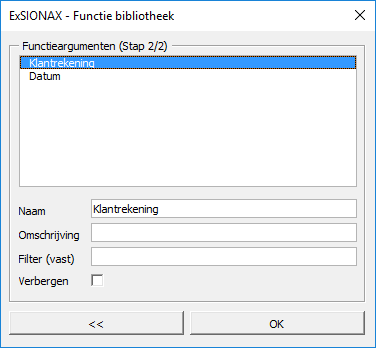
| Field | Description |
|---|---|
| Name | By default the field name of the table will be used, but can be changed to increase the user’s experience. |
| Description | A brief description of the argument (this description is displayed in the function wizard of Excel). |
| Filter (fixed) | When entering a fixed filter, the argument is no longer displayed in the function wizard of Excel. |
| Hide | Indicates whether the argument should be hidden in the function wizard of Excel. |
After pressing the “OK” button the function is added to the function library.
The created function can be found in the function wizard of Excel under the category “ExSIONAX Library”:
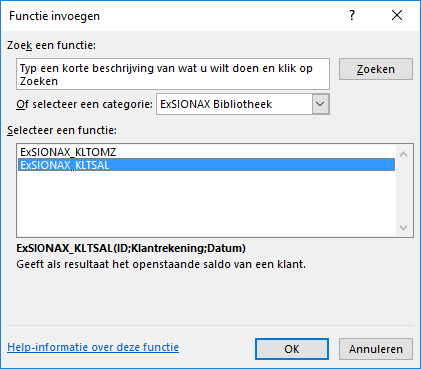
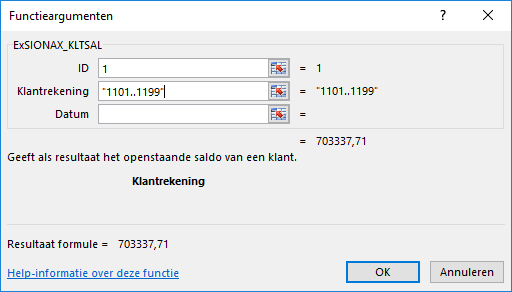
Example of the newly created function:
Function definition

Database functions are using as second argument (Definition) a range in which the table and index fields are defined and a third argument (Field) which defines the field name whose value is to be retrieved. This menu option easily defines both ranges.
Definition
To define the range in which the table and index fields are included, you can choice the option “Definition”.

The following screen is displayed after entering this menu option.
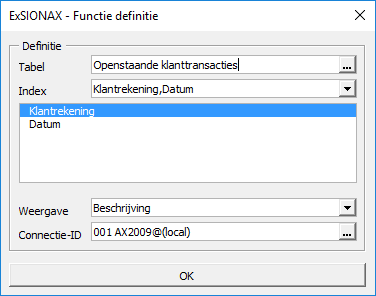
The “Open customer transactions” table is selected with Index “Customer account, Date”.
After pressing the “OK” button, ExSIONAX asks to enter a name, which will be given to the function definition:
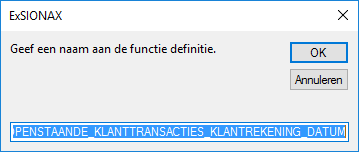
And the table- and index information will be copied to the active cell in your worksheet. The following screen shows this on A1 to B3.
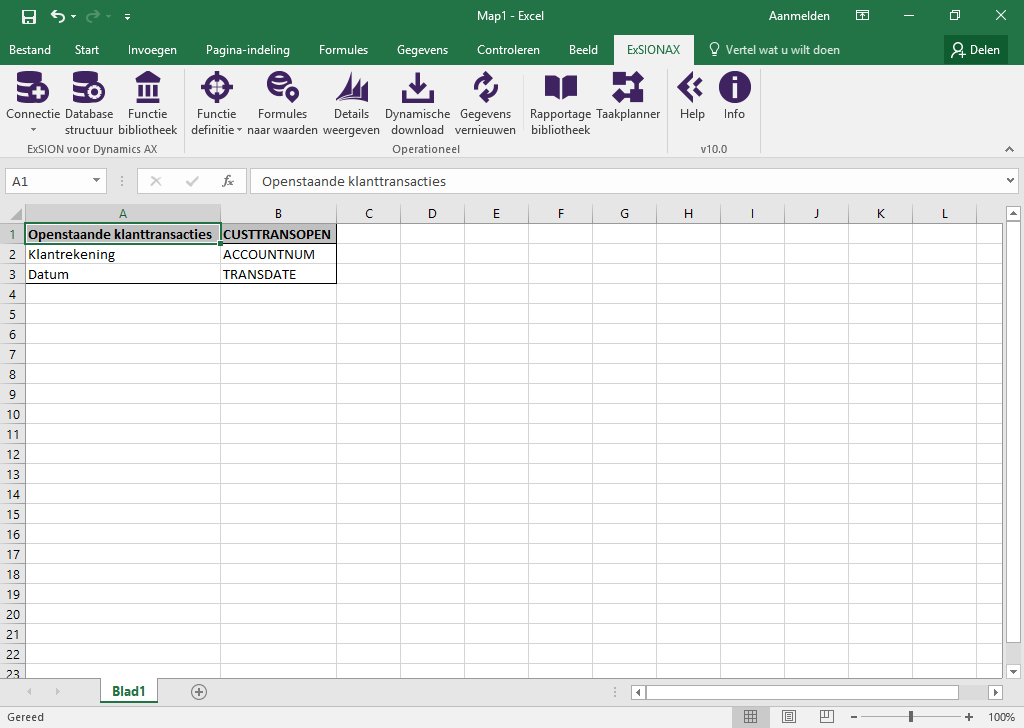
The next step is to create a field range, you can do this by choosing for the menu option “Field”.
Field
In order to create a range in which the field name is defined, you must choose the option “Field”:

In the next screen, you can search for a field within a table.

After you have pressed on the “OK” button, the field with the description is copied to the active cell:

The defined ranges may be used in the function ExSIONAX_DBSUM.

See chapter Database functions, for a list of functions that use function definitions.
Formulas to values

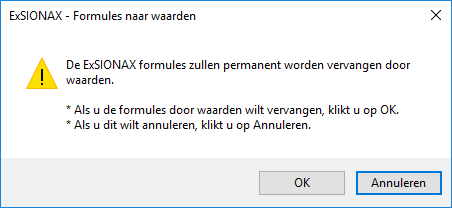
This option will remove all ExSIONAX functions while preserving their resulting values and can be used if you want to send your worksheet with the current values to a non ExSIONAX user.
Note: This is not reversible so it is important to first save your worksheet before performing this action.
Without the ExSIONAX functions the data cannot be refreshed anymore.
Show details

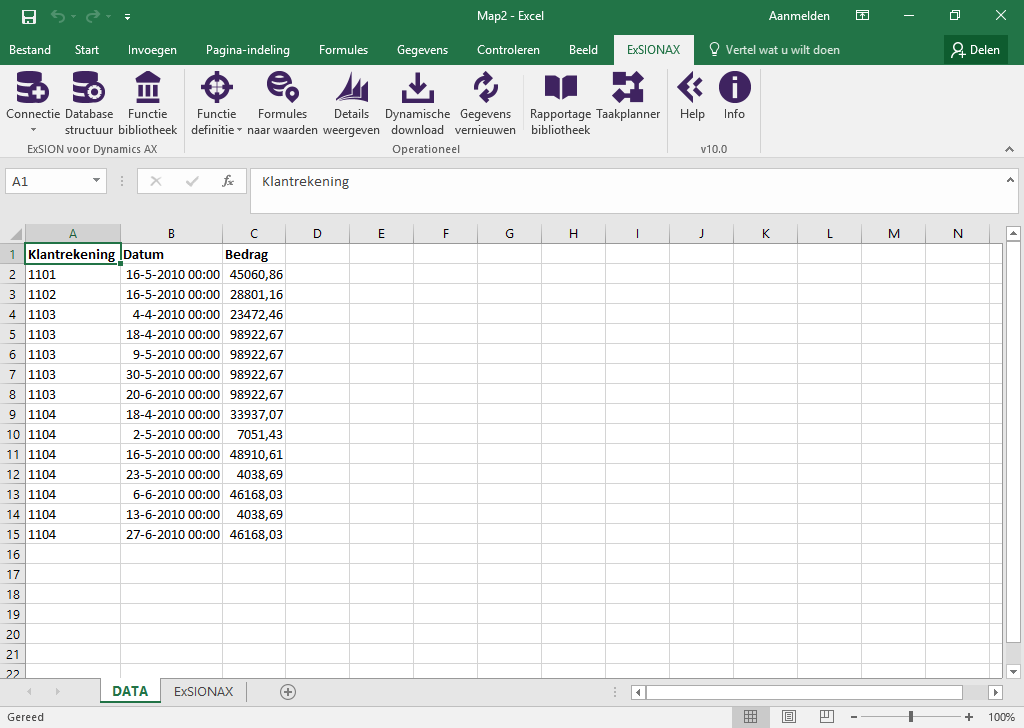
This option will show information based on the ExSIONAX formula in the active cell. After activating the button “Show details”, a new workbook will be created with two worksheets.
The first sheet is called “DATA”, and will have the data that was retrieved from the database as defined by the function in the active cell of your worksheet.
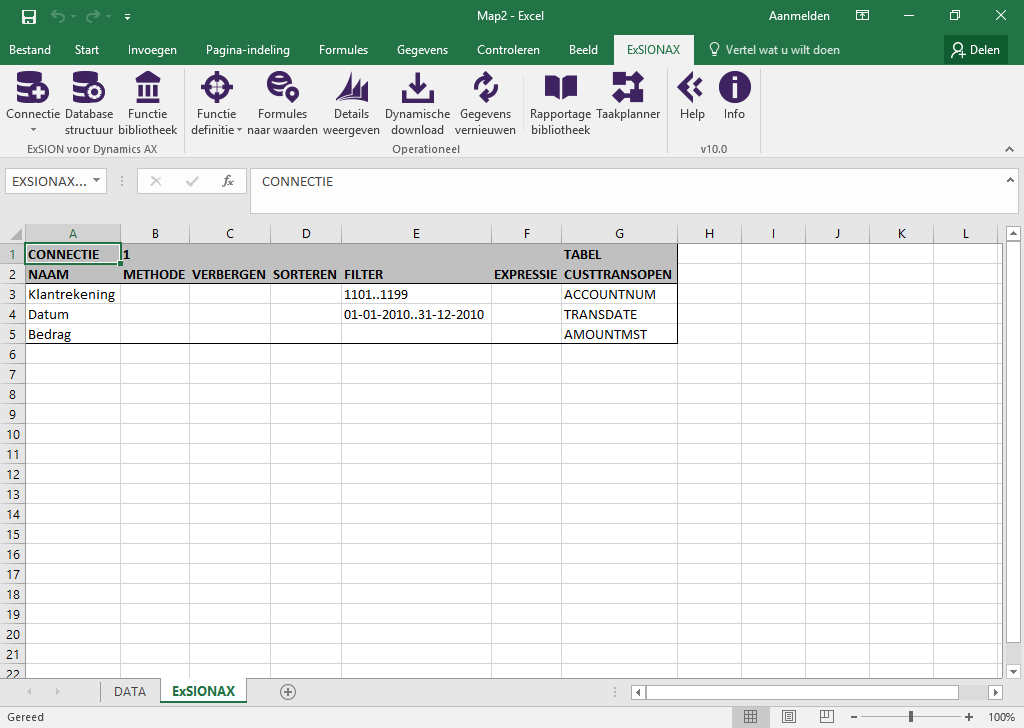
The second one is called “ExSIONAX” and will have a “Dynamic download” definition based on the same function.
You can use the “Refresh data” button to refresh the data on the “DATA” sheet.
See example below:
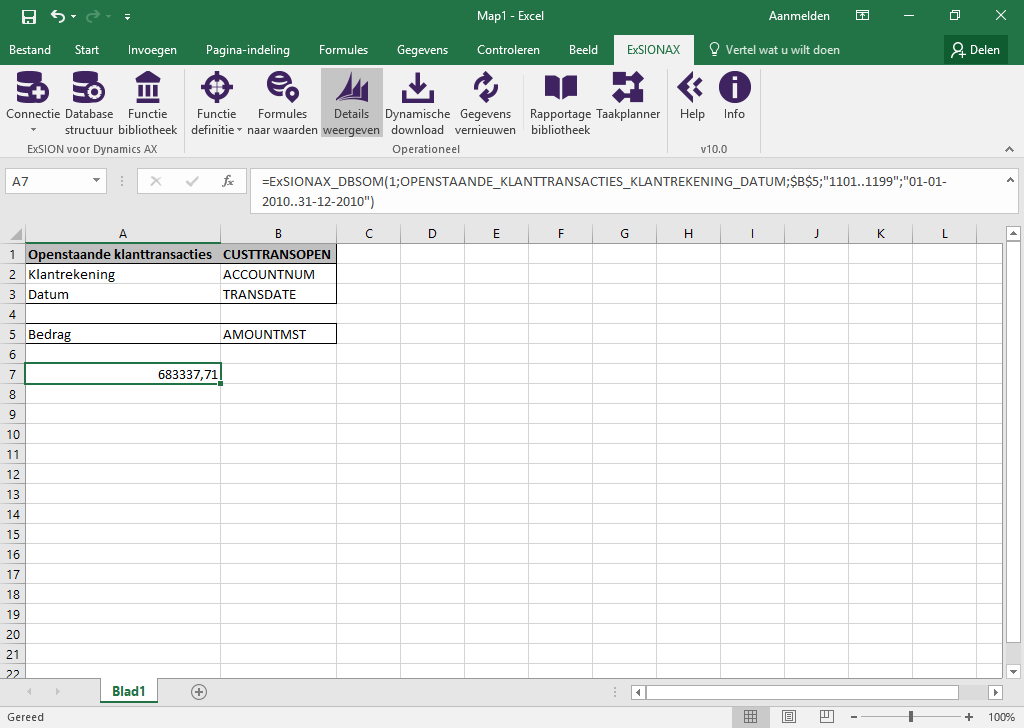
The new workbook with the “DATA” and “ExSIONAX” worksheets:
As you can see, the download definition is based on the function arguments:
Dynamic download

By means of a dynamic download data can be retrieve from the database in to Excel. In contrast to the use of functions, large amount of data can be retrieved at ones.
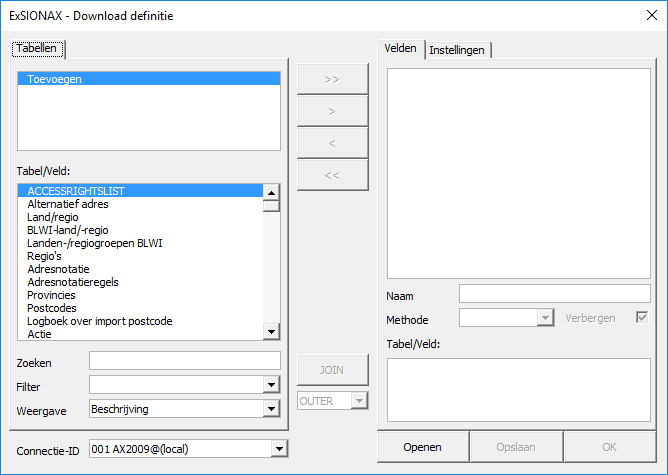
When the function is called for the first time, the following screen is shown.
| Field | Description | ||||||||||||||||||||||||||
|---|---|---|---|---|---|---|---|---|---|---|---|---|---|---|---|---|---|---|---|---|---|---|---|---|---|---|---|
| Add | This lists all the tables from the database. | ||||||||||||||||||||||||||
| Search | Here you can enter a search filter to find the table(s) you are looking for. | ||||||||||||||||||||||||||
| Filter | Filter on type TABLE or VIEW. | ||||||||||||||||||||||||||
| Display | Choice for displaying the table/field description or name from the database. | ||||||||||||||||||||||||||
| Connection-ID | The ID number of the database connection. | ||||||||||||||||||||||||||
| >> | Adds all fields from the table to the selected fields list. | ||||||||||||||||||||||||||
| > | Add a field from the table to the selected fields list (can also be done by double-click on the field). | ||||||||||||||||||||||||||
| < | Removes a field from the selected fields list. You can also double-click to select and remove a field. | ||||||||||||||||||||||||||
| << | Removes all fields from the selected fields list. | ||||||||||||||||||||||||||
| JOIN | When multiple tables are selected, relationships between tables must be specified. This is by standing on a field on the left tab and select the relationship field on the right tab. | ||||||||||||||||||||||||||
| OUTER | When a relationship is created between two tables, you can indicated here whether the data should exist from the selected table (INNER JOIN).
|
||||||||||||||||||||||||||
| Fields | The selected fields from the selected table(s). | ||||||||||||||||||||||||||
| Name | The default is the field name of the table, but can be adjusted here. The custom name is shown in the Table or PivotTable. | ||||||||||||||||||||||||||
| Method | Choice of the calculation on the selected field, there are two types of calculations.
Type 1 grouped the visible or join fields in the table on which a method is applied.
Type 2 only applies to fields of a type date and is intended to reduce the number of records in a PivotTable.
|
||||||||||||||||||||||||||
| Hide | Check this box if the selected field should not be visible on the worksheet. This is useful is the field is used for filtering only. | ||||||||||||||||||||||||||
| Table/Field | This will show the table and field’s original name as it appears in the database. It's possible join table/field will also be shown here. | ||||||||||||||||||||||||||
| Open | Opens a EDD (ExSIONAX Download Definition) file. | ||||||||||||||||||||||||||
| Save | Saves a EDD (ExSIONAX Download Definition) file. | ||||||||||||||||||||||||||
| OK | Close the window and create or modify the download definition on your current worksheet. |
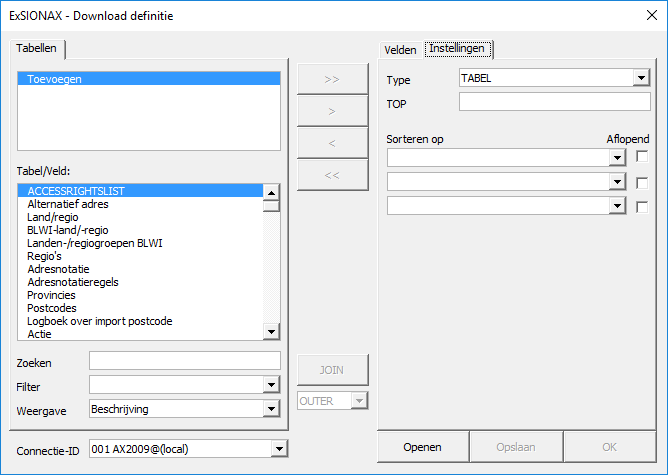
Continuation on the screen shown above, now with the options from the tab “Settings”:
| Field | Description |
|---|---|
| Type | Choose your download type here: TABLE, FORMAT AS TABLE or PIVOT TABLE. |
| TOP | The maximum number of records to be retrieved. |
| Sort by | There’s a maximum 3 fields you can use to sort records. |
| Descending | There’s a maximum 3 fields you can use to sort records. |
To add a table to the download definition, double-click on the table name in the left column (within the list of tables in the “Add” tab). A new row will appear with the name of that table. Click on that row to see the list of fields in the table.
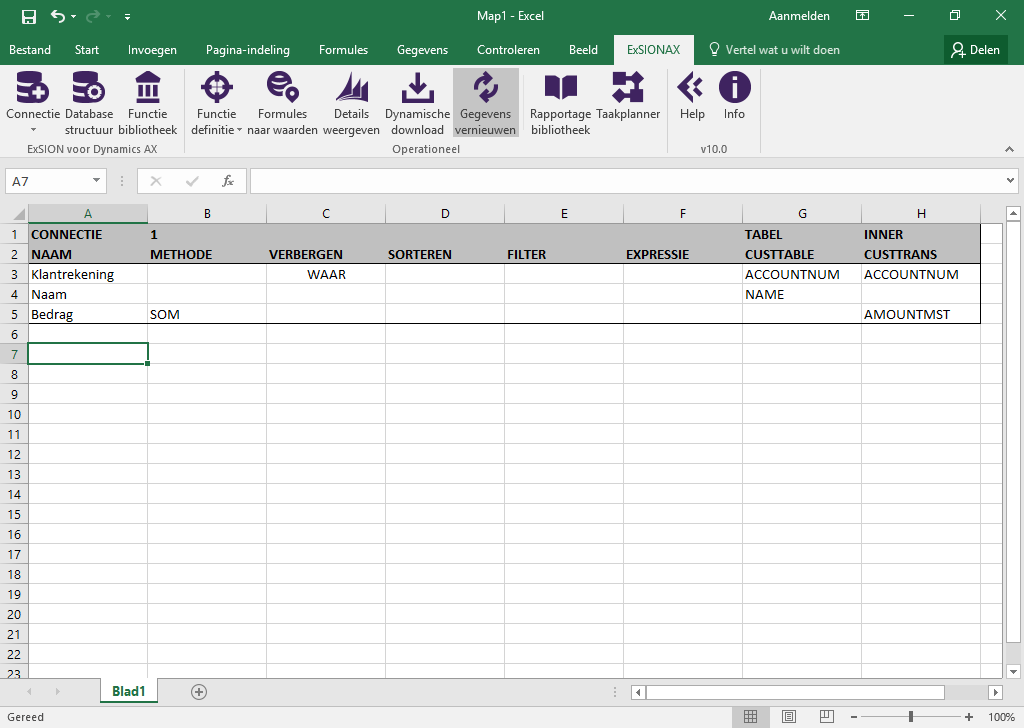
In the following example the table “Customers” with the fields “Customer account” and “Name” and the table “Customer transactions” with the fields “Customer account” and “Amount” with the “SUM” method are added to the download definition. Field “Customer account” is hidden and both tables must contain records (INNER JOIN).
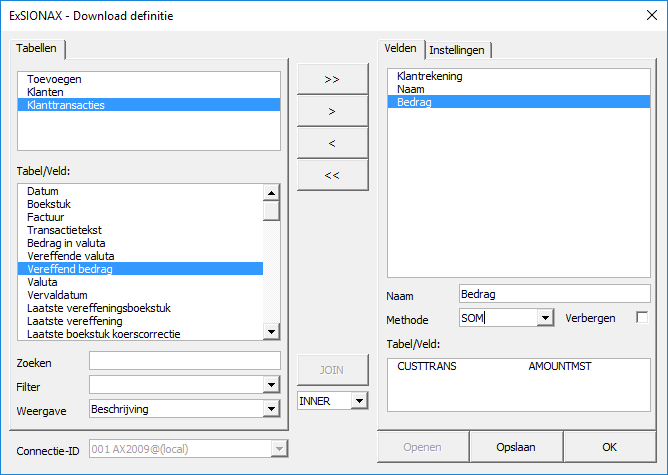
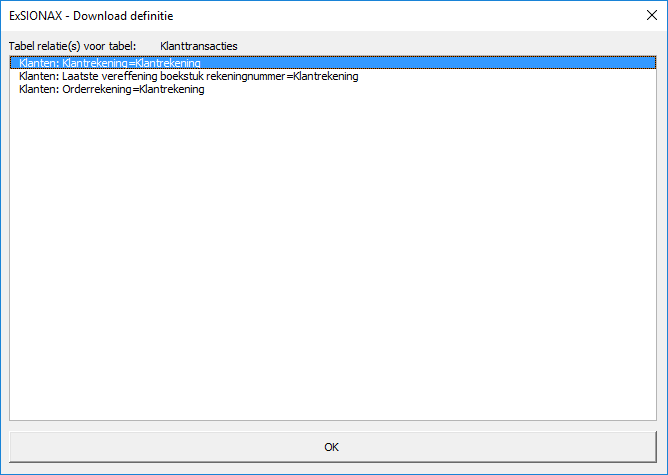
After adding the 2nd table “Customer transactions” comes a join proposal with the table relationships:
Here’s an example of a ready to use download definition after the “OK” button has been clicked.
| Field | Description |
|---|---|
| FILTER | A filter for the field (See: “Filter usage”). |
| EXPRESSIE | Here, a ExSIONAX function can be used to speed up the download. |
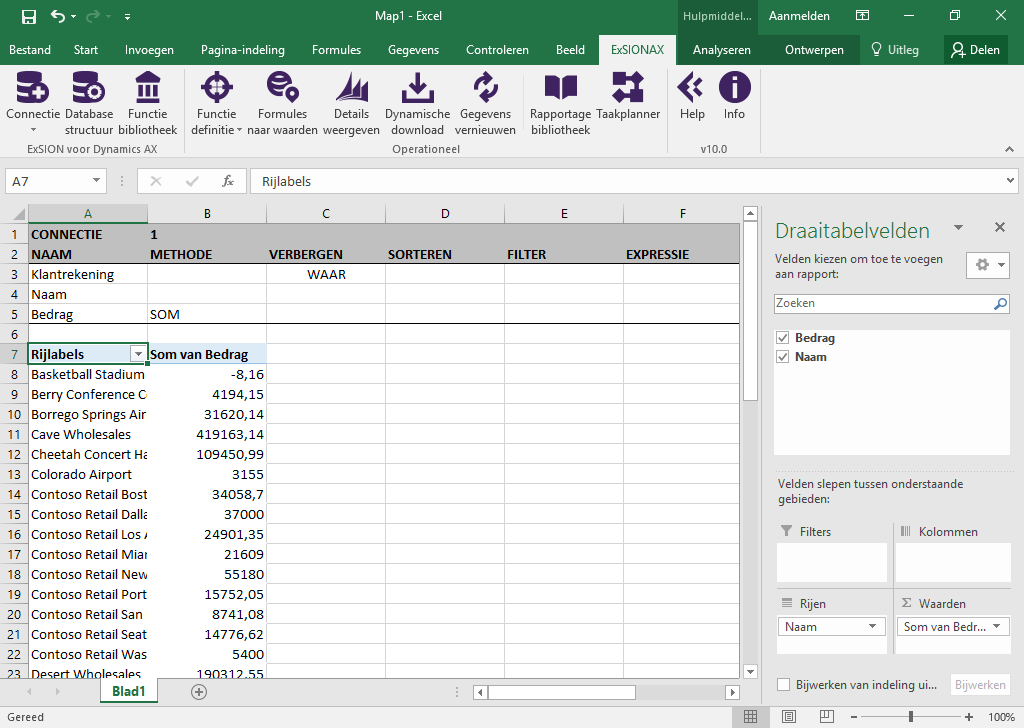
When a download definition is used for the first time after clicking the “Refresh data” button, you will be asked where the output from this download should be placed ($A$7). This will be used as the top left cell.
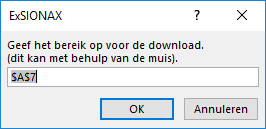
When this is done, the data is retrieved.
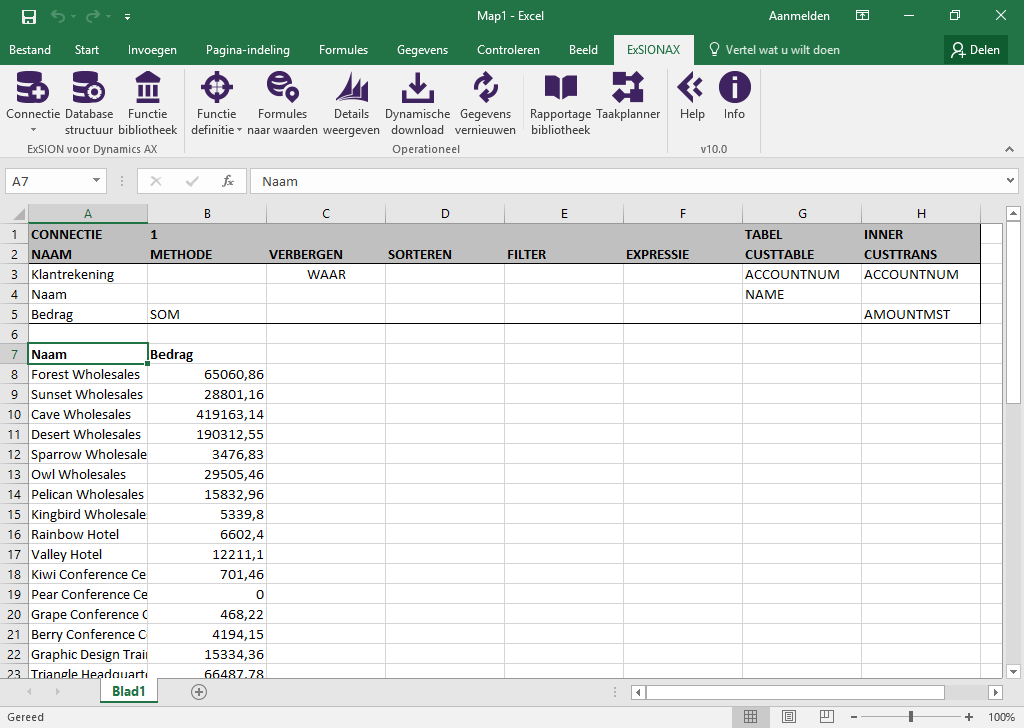
Every download definition has a unique name that starts with “ExSIONAX_QUERY_” followed by a number. The output range for this download also has a unique name, this one starts with “ExSIONAX_DATA_” followed by the same number.
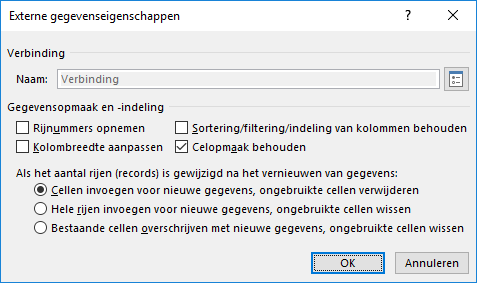
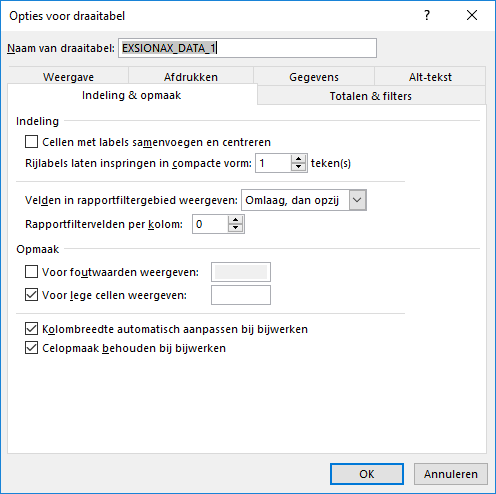
When the output range exists, I.E. has data in it, there are settings from Excel itself that you can use. Place your cursor somewhere in this output range and click the right mouse button to access these settings by selecting Properties. This will result in the following window:
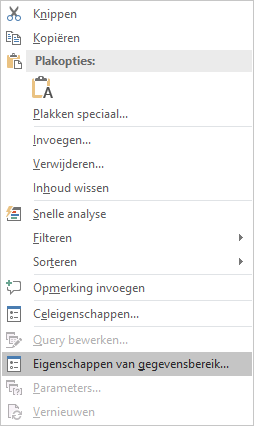
Example of Data Range Properties when output type is TABLE:
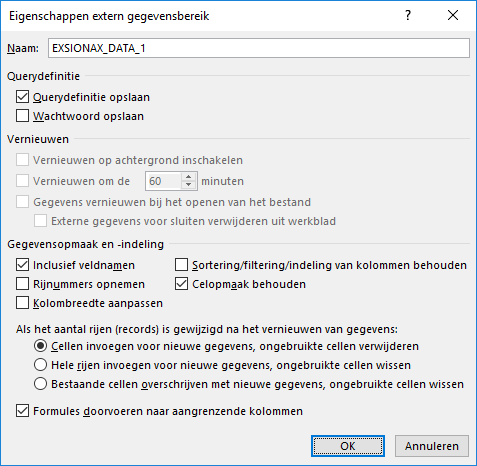
An example of a download definition of the FORMAT AS TABLE type:
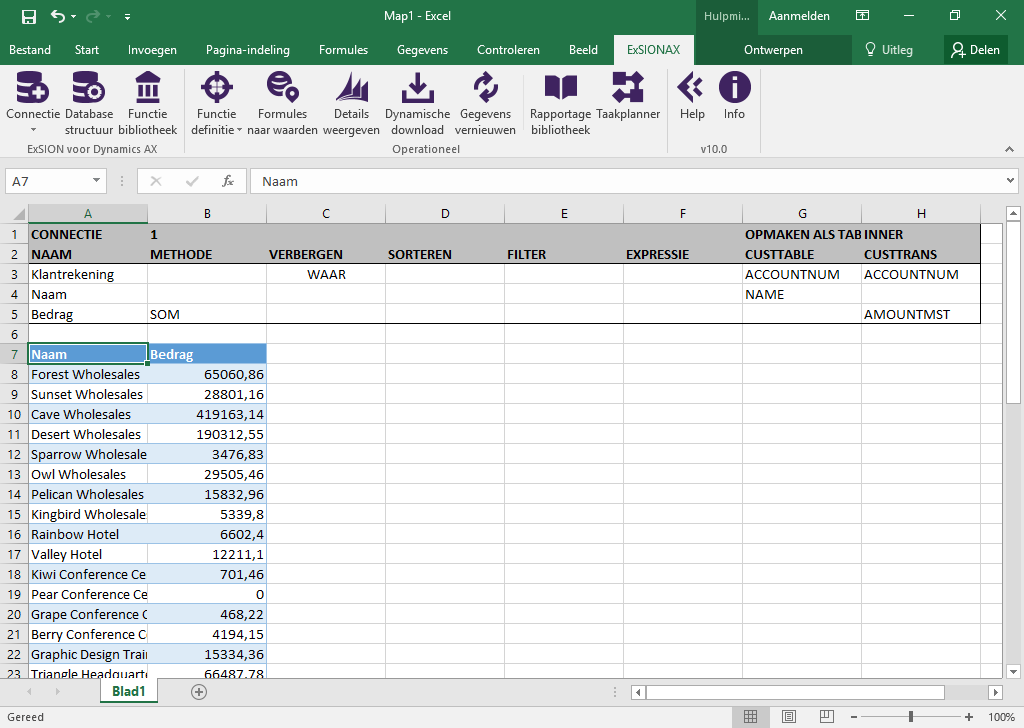
You can access the data properties by placing the cursor somewhere in the table definition and clicking the right mouse button:
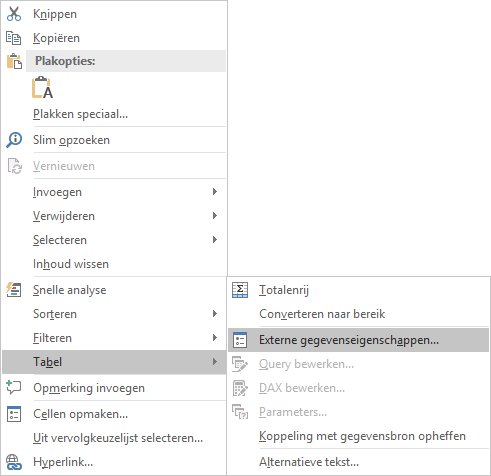
This is an example of a download definition to a PIVOTTABLE:
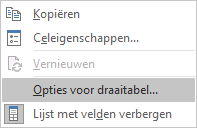
You can access the pivot table properties by placing the cursor somewhere in the pivot table definition and clicking the right mouse button:
Refresh data

With this option, all dynamic downloads and/or formulas recalculated within your Excel document. This option can be used when your data has not been updated in the spreadsheet. The option is similar to the “refresh” of the Internet Explorer.
Reporting library

You can use this function to quick and easily find your created ExSIONAX reports.
First you must add folders that contains your reports to search for:
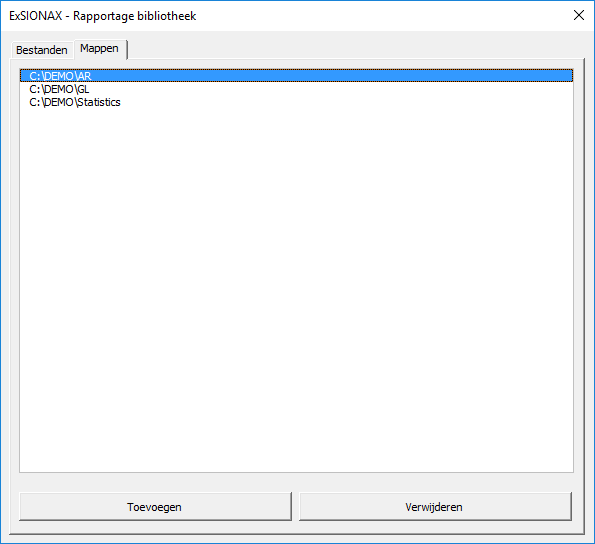
Once this is done you can search in different folders:
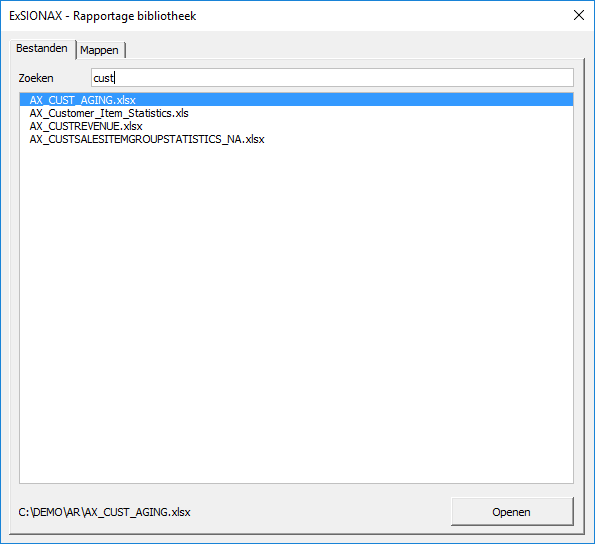
By clicking on the “Open” button, the selected report opens.
Task scheduler

The Task scheduler can be used to have your Excel reports automatically refreshed and mailed or saved at a pre-defined interval.
Click the “Task scheduler” button to see the list of available tasks. The first time it will be empty.
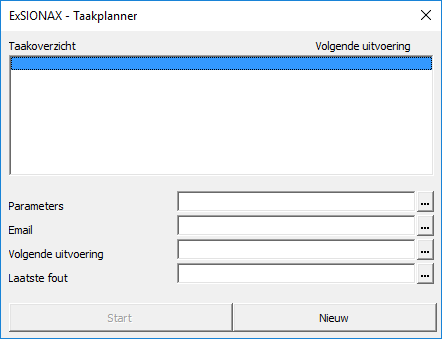
Click the “New” button to add a task.
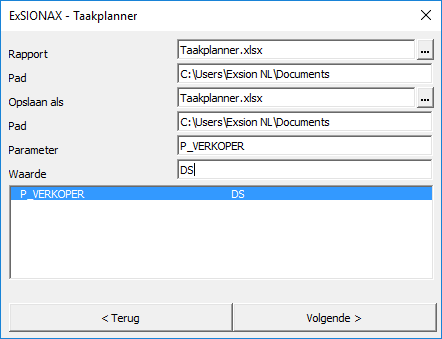
| Field | Description |
|---|---|
| Report | The name of the report to use as a template. |
| Path | The pathname where this document is stored. |
| Save As | The name of the resulting document. If the same path is used the output document MUST have a different name. Use the PDF extension to have the document stored as a PDF file. |
| Path | The pathname for the resulting document. |
| Parameter | The Scheduler can be referring to defined names in the report. When executing the defined name is filled a value (see next paragraph). |
| Value | The value to replace in the defined name. |
| Next > | Next screen. |
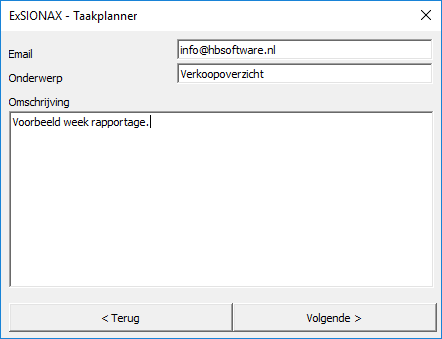
| Field | Description |
|---|---|
| One or more email addresses to send the document to. Separate addresses with semicolons (;). | |
| Subject | The email subject. |
| Description | This text will appear in the email body. |
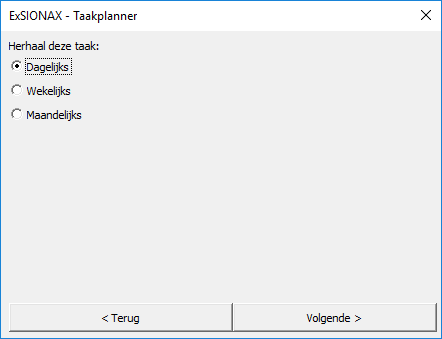
| Field | Description |
|---|---|
| Repeat this task | Task frequency. |
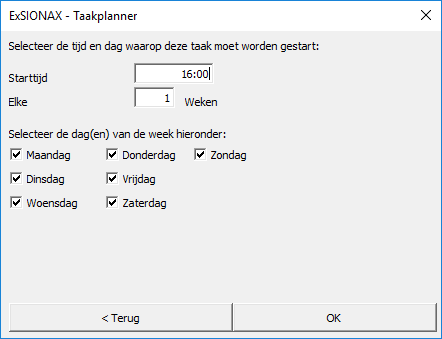
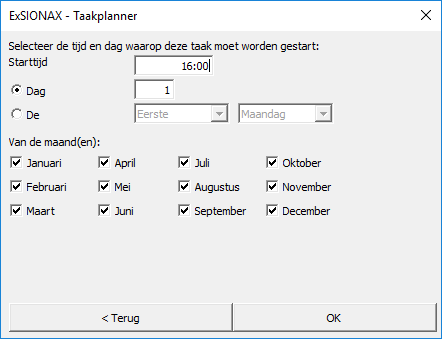
The following screens depend on the chosen frequency.
Daily
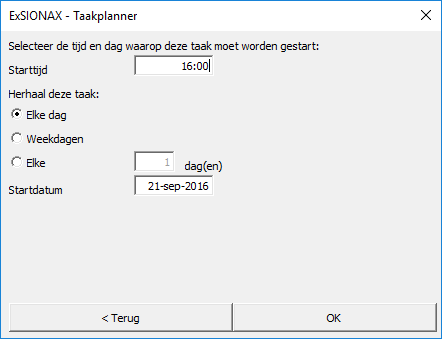
Weekly
Monthly
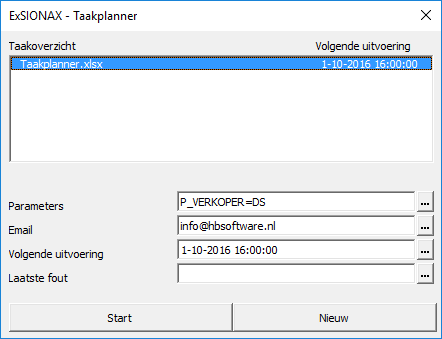
A task can be changed and/or tested.
| Button | Description |
|---|---|
| Start | Starts the Task schedular. Excel should not be used at this time and waits for the next scheduled time. |
| […] | By pressing the ellipsis button behind the various fields, an existing task can be modified. Click on the ellipsis next to “Last error” to execute a selected task immediately. |
To remove a task, double-click on the task in the overview window.
Help

Contains all the information needed to use ExSIONAX.
Info

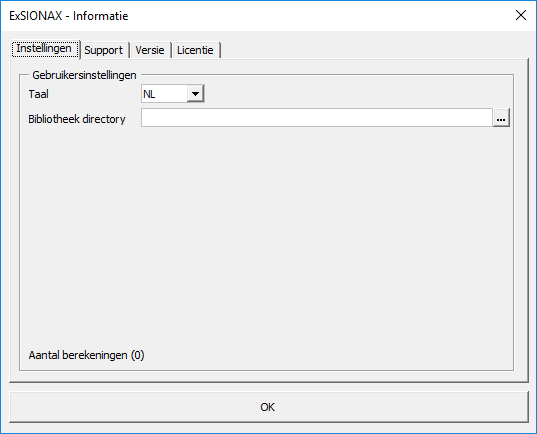
| Tab | Description | ||||||||
|---|---|---|---|---|---|---|---|---|---|
| Settings |
| ||||||||
| Support | Our helpdesk can provide remote support using TeamViewer. | ||||||||
| Version |
| ||||||||
| License | Shows the company name for which a usage license is granted and a list of users which have activated a license. |
General functions
| Function | Description |
|---|---|
| ExSIONAX_COMPANY | Retrieves the company name for the given Connection ID. |
| ExSIONAX_DATE | The result of this function can be used to filter Dynamics AX date fields. |
The general functions can be found in Excel’s function wizard as category “ExSIONAX General”:
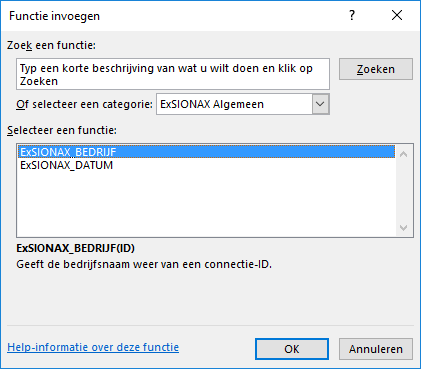
ExSIONAX_COMPANY
The function “ExSIONAX_COMPANY” returns the company name.
| Argument | Description |
|---|---|
| ID | Connectie ID. |
Example: ExSIONAX_COMPANY(1) returns: “Contoso Entertainment USA”.
ExSIONAX_DATE
The functie “ExSIONAX_DATE” returns a value that can be used as a filter for Dynamics AX date fields.
| Argument | Description | ||||||||||||||
|---|---|---|---|---|---|---|---|---|---|---|---|---|---|---|---|
| ID | Connection ID. | ||||||||||||||
| Type | Possible values are: Day, Week, Month, Quarter, Year or Accounting Period. These may be abbreviated by their first letter (D, W, M, Q, A). | ||||||||||||||
| Cumulative | Yes, No or YTD (Year To Date). | ||||||||||||||
| Index | The index must be a number that belongs to the used Type: So if the type is Month the index can be a number from 1 to 12. The number may also be 0 or a negative number. The behavior of the index depends on the used type. Say the current date is October 2015 and the used type is Month. With an index of “-1” this function will return a date filter for September 2015.
|
||||||||||||||
| Year | Year (optional, default is current year). |
Example: ExSIONAX_DATE(1;"Month";"No";2;"2016") returns: “01-02-16..28-02-16”.
Database functions
The use of database functions is recommended for functions that relate to one Excel sheet only.
These functions don´t need to be stored in the function library.
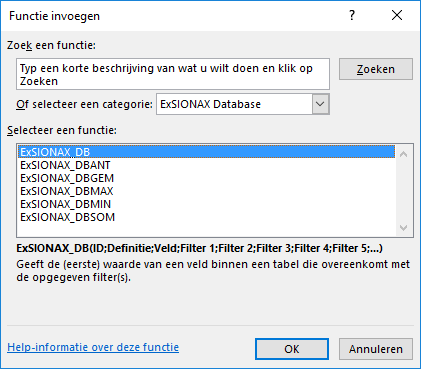
You can find these functions in Excel´s functions wizard in the category “ExSIONAX Database”:
| Field | Description |
|---|---|
| ExSIONAX_DB | Returns the (first) value from a field in a table that corresponds to the used filter(s). |
| ExSIONAX_DBSUM | Returns the summed value from a field in a table that corresponds to the used filter(s). |
| ExSIONAX_DBMIN | Returns the smallest value from a field in a table that corresponds to the used filter(s). |
| ExSIONAX_DBMAX | Returns the smallest value from a field in a table that corresponds to the used filter(s). |
| ExSIONAX_DBAVG | Returns the average value from a field in a table that corresponds to the used filter(s). |
| ExSIONAX_DBCNT | Returns the number of records from a table that correspond to the used filter(s). |
| Argument | Description |
|---|---|
| ID | Connection ID. |
| Definition | A function definition (Range with table name and index) from where the functions gets it’s values (See: Function definition). |
| Field | The name of the field from which the value should be returned. |
| Filter 1 | Filter for the first field in the function definition (See: Filter usage). |
| Filter 2 | Filter for the second field in the function definition. |
| ... | Etc... |
Function library
The function library holds the User Defined Functions.
These functions act like any other Excel or ExSIONAX function and will be available for all Excel documents.
This library can be shared among all ExSIONAX users.
Filter usage
When you enter a filter, you can use all the numbers and letters that you can normally use in the field. In addition, you can use some special symbols or mathematical expressions.
Here are the available formats:
| Symbol | Meaning | Sample Expression | Records Displayed |
|---|---|---|---|
| = | Equal to | 377 | Number 377. |
| BLUE | Those with the BLUE code, for example, the BLUE warehouse code. | ||
| 22-1-2016 10:00 | An exact datetime: 22-jan-2016 10:00:00. | ||
| .. | Interval | 1100..2100 | Numbers 1100 through 2100. |
| ..2500 | Up to and including 2500. | ||
| ..31-12-2015 | Dates up to and including 31-dec-2015. | ||
| ! | Either/or | 1200|1300 | Those with number 1200 or 1300. |
| & | And | <2000&>1000 | Numbers that are less than 2000 and greater than 1000. |
| <> | Not equal to | <>0 | All numbers except 0. |
| <>A* | Not equal to any texts that start with A. | ||
| > | Greater than | >1200 | Numbers greater than 1200. |
| >= | Greater than or equal to | >=1200 | Numbers greater than or equal to 1200. |
| < | Less than | <1200 | Numbers less than 1200. |
| <= | Less than or equal to | <=1200 | Numbers less than or equal to 1200. |
| * | An indefinite number of unknown characters | *cem* | Texts that contain “cem”. |
| *cem | Texts that end with “cem”. | ||
| cem* | Texts that begin with “cem”. | ||
| ? | One unknown character | ?im | Texts such as Jim of Tim. |
| () | Calculate before rest | 30|(>=10&<=20) | Those with number 30 or with a number from 10 through 20 (the result of the calculation within the parentheses). |
You can also combine the various format expressions:
| Sample Expression | Records Displayed |
|---|---|
| 5999|8100..8490 | Include any records with the number 5999 or a number from the interval 8100 through 8490. |
| ..1299|1400… | Include records with a number less than or equal to 1299 or a number equal to 1400 or greater (all numbers except 1300 through 1399). |
| >50&<100 | Include records with numbers that are greater than 50 and less than 100 (numbers 51 through 99). |
| *C*&*D* | Texts containing both C and D. |
| *co?* | Texts containing “co” such as cot, cope and incorporated. “co” must be present, followed by at least one character, but there can be an indefinite number of characters before and after these. |
Make sure you use valid filters because it is possible to use an invalid filter without any warning from the database and ExSIONAX passes the filters directly to the database.
VBA Tips and tricks
ExSIONAX offers the abillity to execute user written VBA routines before and after its Refresh function. It is also possible to call ExSIONAX's Refresh function from within a user written routine. Use this carefully because it might effect the Refresh function.
The examples below use ‘ExSIONAX.xlam’. If you use Excel 2003 you should use ‘ExSIONAX.xla’.
Execute menu functions.
Application.Run "'ExSIONAX.xlam'!ExSIONAX_REFRESH"
This will have the same effect as clicking the “Refresh data” button in the ExSIONAX menu.
To be ExSIONAX indepenent you should ignore any errors:
On Local Error Resume Next
Application.Run "'ExSIONAX.xlam'!ExSIONAX_REFRESH"
On Local Error GoTo 0
Call ExSIONAX “Formulas to values”:
Application.Run "'ExSIONAX.xlam'!ExSIONAX_VALUES"
To bypass ExSIONAX message box use the following:
Dim s_displayAlertsSetting As Boolean

s_displayAlertsSetting = Application.DisplayAlerts
Application.DisplayAlerts = False
On Local Error Resume Next
Application.Run "'ExSIONAX.xlam'!ExSIONAX_VALUES"
On Local Error GoTo 0
Application.DisplayAlerts = s_displayAlertsSetting
Before Refresh
Use the following function to execute code before ExSIONAX performs a refresh:
Sub ExSIONAX_BEFOREREFRESH()
	Call [Your own macro]
End Sub
After Refresh
Use the following function to execute code after ExSIONAX performed a refresh:
Sub ExSIONAX_ONREFRESH()
	Call [Your own macro]
End Sub
Example for a Refresh after changing a cell containing a parameter
Place this macro in the ThisWorkbook section.
Private Sub Workbook_SheetChange(ByVal Sh As Object, ByVal Target As Range)
	If Target = ActiveSheet.Range("Subcategorie") Then
		Application.Run "'ExSIONAX.xlam'!ExSIONAX_REFRESH"
		ActiveSheet.Calculate
	End If
End Sub
Deactivating ExSIONAX
To deactivate ExSIONAX and free the license you should remove the Exsion add-in from Excel.
Press the “File” button (top left of the screen).

Select “Options”.
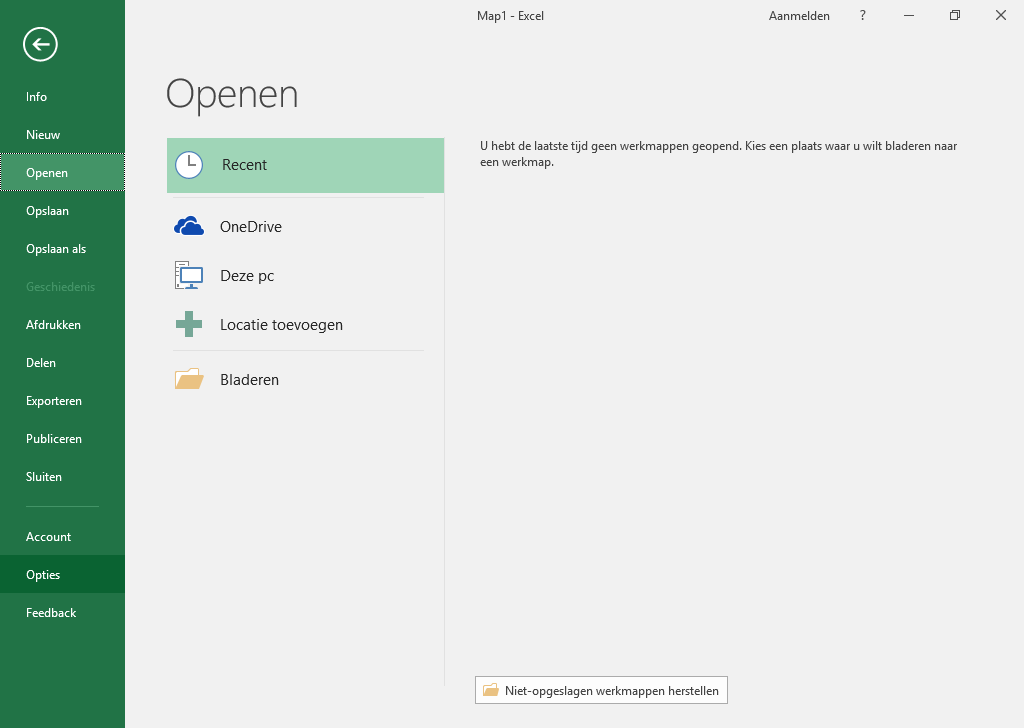
Choice “Add-Ins” and press “Go...”.
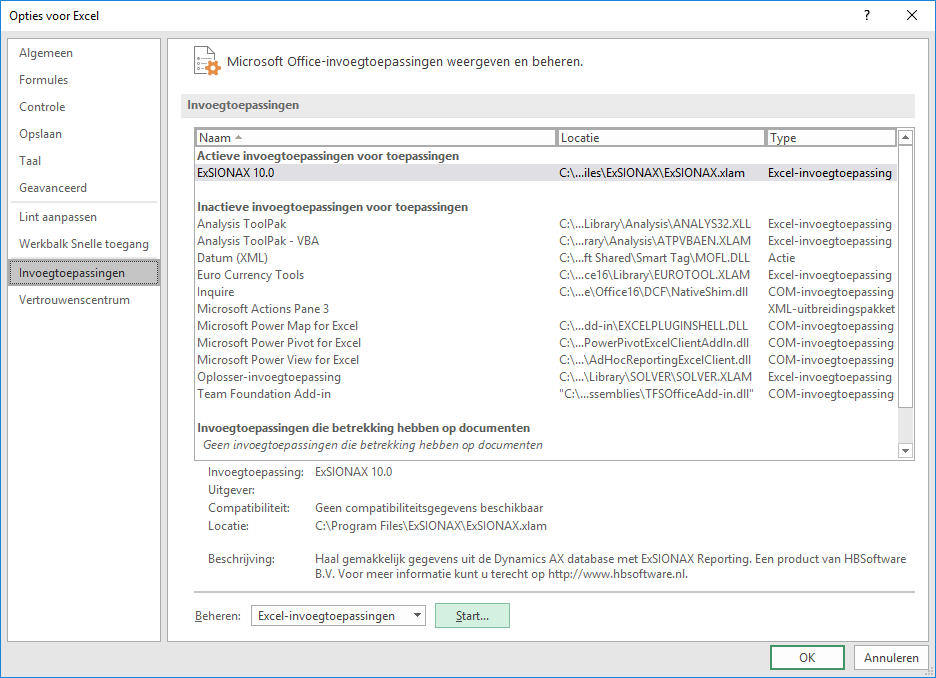
Uncheck the “ExSIONAX 10.0” addin and press “OK”.
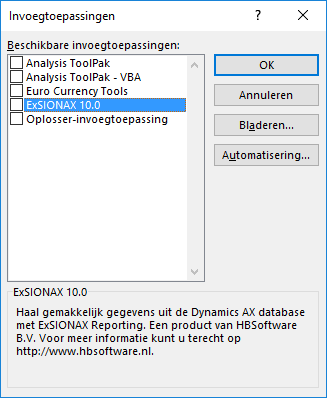
Het ExSIONAX menu is no longer be avalailable and the license is free for another user.
